Teladoc Health Provider Access50.1.0
Publisher Description
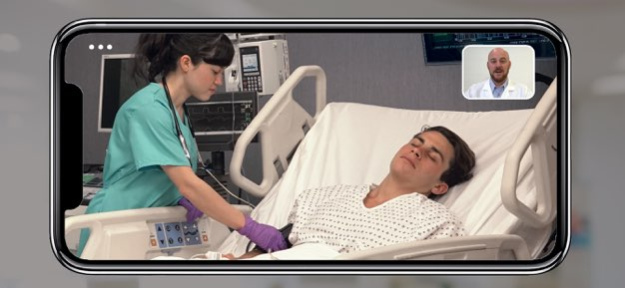
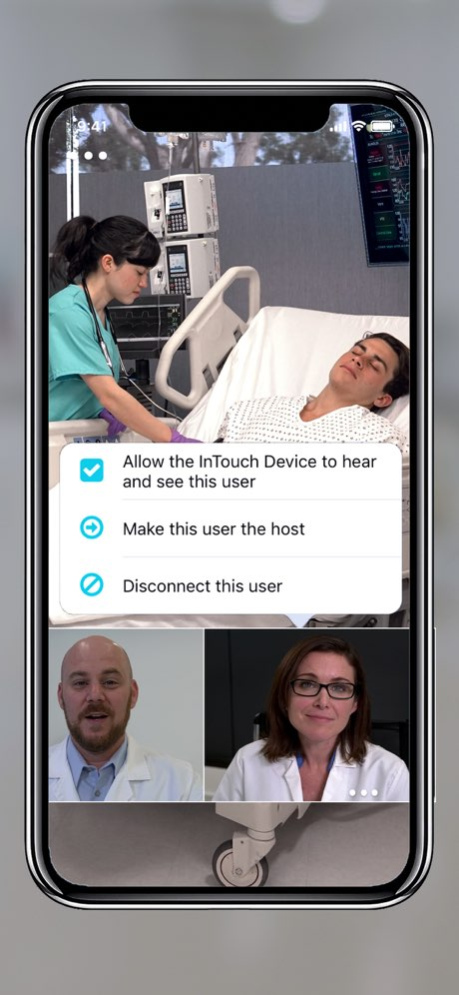


The Teladoc Health App is used for connecting to Teladoc Health Patient Access Devices on the Teladoc Health cloud-based network. As part of the Provider Access interfaces, the Teladoc Health Provider Access App allows for more timely care and treatment of acute care patients.
IMPORTANT: The Teladoc Health Provider Access App for iOS is intended for use by medical professionals who provide patient care services. In order to use the Teladoc Health Provider Access App, your healthcare facility must first have purchased and/or have permission to provide medical services on a Teladoc Health Patient Access device. Contact your healthcare organization's service line director or your Teladoc Health Account Executive for user account information.
Easy-to-Use:
The Teladoc Health Provider Access App is designed to provide medical professionals with the ability to support acute care telemedicine from a mobile platform.
The Provider Access App supports Teladoc Health Patient Access Devices. It allows medical professionals to interact with patients and staff at any time while using 4G cellular or WiFi Internet connections. As part of the Teladoc Health security protocols, the Provider Access App is HIPAA compliant to provide safe, secure, and encrypted access to patients when immediate patient care is most needed.
The Teladoc Health cloud-based network allows for real-time dynamic management of bandwidth, video frame rate, and resolution to provide the optimum telehealth experience regardless of the type and quality of Internet connection used. Supporting native multi-touch gestures, users can easily pan, tilt, and zoom-in on the patient and clinical data sources while receiving high-resolution video images of important clinical information.
Features & Benefits:
. Intuitive user interface allows single-tap Box Zoom and Point-to-See pan/tilt camera head controls.
. Automatic control and management of local and remote audio settings and video brightness ensure medical professionals and their patients can communicate effectively.
. Dynamic video optimizer adjusts bandwidth, frame rate, and video resolution to Internet quality changes, allowing high-quality, low-latency telehealth experience on mobile Internet connections.
. The Teladoc Health cloud-based network and infrastructure allows seamless and secure connections from most internet networks without a VPN or special firewall rules.
. 24x7 technical support services are included for all users.
. Integrated connection wizards utilize advanced firewall traversal technologies while supporting SIP standard based H.264 AVC video.
. HIPAA compliance ensures safe, secure, and private interactions.
. Privacy handset and laser pointer tools allow for improved patient communication.
. Supports integrated stethoscope for real-time auscultation.
Note: Teladoc Health recommends using a high-speed WiFi connection for the best experience. The Provider Access App also supports 4G cellular connections. Please check with your carrier regarding data plan service charges when transmitting audio and video data over the Internet.
Version History In session chat availability has been restored (if configured for the practice).
Providers in a session with a Teladoc device can now transfer device control from one to another.
If available, interpretive services authorization parameters can be associated with individual Teladoc devices instead of a practice.
Additional bug fixes and usability improvements. 50.1.0 Sep 29 Fixed a UI issue in the Care Location list that could cause the app to become unresponsive on some devices 50.0.2 Aug 4 Connectivity and session stability improvements.
Improved usability of patient information panel in calls with multiple patients. 50.0.1 Jul 21 This version improves patient profile handling, enables screen sharing, and fixes various functionality and stability issues. 49.3 Apr 2 iOS Provider Access App 49.1 resolves problems with connections to Teladoc Viewpoint devices. 49.1.0 07/15/2025 iOS Provider Access App 49.0 enables providers to select and show NIH Stroke Scale (NIHSS) images within telemedicine visits. The images with text are available in English and Spanish.
Please note that the practice admin must enable this capability in the practice configuration. 49.0.0 06/03/2025 This version includes critical updates for video connectivity in health system managed networks. Please upgrade you application as soon as possible. 48.0.3 04/15/2025 This version includes critical updates for video connectivity. Please upgrade you application as soon as possible. 48.0.2 02/20/2025 This version includes critical updates for video connectivity in health system managed networks. Please upgrade you application as soon as possible. 48.0.1 02/18/2025 If the pan-tilt-zoom (PTZ) camera is in use by a virtual sitter, providers performing additional concurrent sessions cannot use the PTZ camera and will be shown a notice in iOS PAS or Windows PAS if they try to access the PTZ. 48.0 12/10/2024 Patch Fixes:
1. NIHSS images: Resolved an issue where NIHSS images were not displaying correctly in all types of sessions.
2. Video choppiness & Blurriness: Improved video call quality for hosts by addressing issues causing choppiness and blurriness.
-------------
Previous major updates:
Unified Provider Experience Enhancements
1. Push notifications: Providers can now receive push notifications when the Solo Provider Experience is enabled. Tapping the notification will launch the app and direct you to the relevant screen after logging in.
2. Enterprise login: Clients with Enterprise login can now enable the new Solo Provider Experience for the iOS app.
New Video Call Experience Enhancements
1. Device control panel:
Providers can now connect Teladoc telehealth devices with the new video call experience.
Providers can remotely control camera tilt, pan, and zoom, similar to the previous experience.
Providers can now remotely control the device’s speaker volume and picture-in-picture (PIP) mode.
Providers can now view the device’s battery level remotely.
2. Privacy mode: Providers can connect to devices in privacy mode within the new video call experience.
3. Invite panel: Providers can invite other providers, guests (such as a patient’s family member), and interpreters (if the client has enabled interpreter services) to a call.
4. Patient sessions: Providers can still view the patient information panel in the new video call experience.
Please note: Please reach out to the Teladoc support team to enable the new Solo Experience or the new video call experience. They will be happy to assist you based on your specific use case and needs. 47.0.1 07/30/2024 Unified Provider Experience Enhancements
1. Push notifications: Providers can now receive push notifications when the Unified Provider Experience is enabled. Tapping the notification will launch the app and direct you to the relevant screen after logging in.
2. Enterprise login: Clients with Enterprise login can now enable the new Unified Provider Experience for the iOS app.
New Video Call Experience Enhancements
1. Teladoc telehealth device control panel:
Providers can now connect Teladoc telehealth devices to the new video call experience.
Providers can remotely control camera tilt, pan, and zoom, similar to the previous experience.
Providers can now remotely control the device's speaker volume and picture-in-picture (PIP) mode.
Providers can now view the device's battery level remotely.
2. Privacy mode: Providers can connect to devices in privacy mode within the new video call experience.
3. Invite panel: Providers can invite other providers, guests (such as a patient's family member), and interpreters (if the client has enabled interpreter services) to a call.
4. Patient sessions: Providers can still view the patient information panel in the new video call experience.
Please note: Please reach out to the Teladoc support team to enable the new Unified Provider / Solo Experience or the new video call experience. They will be happy to assist you based on your specific use case and needs. 47.0 07/09/2024 Enable Solo experience on iOS Provider Access App. Users can connect to an appointment with a patient or connect with carelocation through this one app. Users can switch between different practices from the left panel after they login. Please reach out to Tealdoc Health admin to enable this new experience.
Started supporting visitnow.org domain. Please reach out to Teladoc Health admin if you see the login page multiple times.
Support Operating System iOS 14 and above. Stop supporting the Operating system iOS 13. 46.0 07/11/2023 Invite a guest by email: Practitioners who log in as a Host can invite a guest by email to join a session on a device from any device.
Practitioners can type in the email address or copy it from their contacts. The app will show an error message if the email address is not in right format. Practitioners will have to confirm one more time before sending the invite. The practitioner will receive a notification when the request is sent successfully. Users in the session will receive a notification when the guest user joins the call. Users in the session will receive a notification when the guest user leaves the call.
Invite a guest to join by video: Practitioners who log in as a Host can invite a guest by SMS or email to join a session on a device by video.
Practitioners can type in the US-based number or email address. Practitioners will have to confirm one more time before sending the invite. Guest will receive a phone number to join by audio or a link to join by video.
For guest who decides to join by video, they will be directed to a web page to enter their name. Guest will then be taken to the 'Pre-call test' page where the web page will ask permission for their camera and microphone. Once the web page finishes the test, the guest user can proceed to the session by pressing on 'Enter visit'. Guest users can now see the device and provider's video in the call. Guest can leave the session by pressing on 'Leave Call'.
Invite an interpreter to join by video: Practitioner who logs in as a Host can invite an Interpreter to join a session by audio or video. A contract with one of two interpretive services is required.
Practitioners can switch to the Interpreter tab to see the list of available languages. Practitioners can search or scroll through the list. Practitioner will have to choose an audio or video interpreter if available for the selected language. Practitioners will have to confirm the language one more time before sending the invite. The practitioner will receive a notification when the request is sent successfully. Users in the session will receive a notification when the interpreter joins the call. Users will see a globe icon on the thumbnail so it is easy to identify the Interpreter user who has connected the call. Users in the session will receive a notification when the Interpreter leaves the call. 45.1 01/25/2023 Addressing audio issues on newer iPhones 45.0.2 11/28/2022 Introduced a new setting to address audio issues on newer iPhones 45.0.1 11/03/2022 Invite a guest to join from their phone: Practitioners who log in as a Host can invite a guest by SMS to join a session on a device from their phone (PSTN-Audio only). The practitioner needs to be enabled by our admin team.
Invite an interpreter to join: A practitioner who logs in as a Host can invite an Interpreter to join a session on a device (PSTN-Audio only). A contract with one of two interpretive services is required.
Support long Robot names: Practitioners can now click on three dots to see the full name of the robot in the context menu. 45.0 10/19/2022 Fix a crash that happens when backgrounding the application during a video session. 44.1.1 09/06/2022 Screenshare update:
Guest users joining a session from iOS PAS, can view the shared screen from the host in the main view. Patient's video that used to be shown on the main view is moved to the list of other thumbnails
Guest users joining a session from iOS PAS, can use gestures on the shared screen from the host shown in the main view. Users will be able to pinch in-out and pan by swiping. Double-tap will take the user to the default view of the shared screen.
Bug fixes 44.1 06/21/2022 Apple Default Interface:
Users are now presented with an Apple default interface when they receive a phone call while in a session (i.e. virtual encounter) using this app. When the user selects 'Hold & Accept', they are taken to the Apple default interfacewhere they can manage two different calls at the same time. Through this interface, users can swap between the two calls. Users can mute or unmute their microphone through this interface when they are in an active session with the iOS PAS. Users will be directed within the App when they click on the Provider Access icon on this interface. When the user has put the iOS PAS session on hold while attending another phone call and then opens the iOS PAS App, they will be presented with an On-hold message. The user won't be able to resume the session in the iOS PAS until they end the other ongoing phone call through the Apple interface.
Demo Training:
When a Provider connects to a Connected Device in the Experience
Center for a Demo or Training, their microphone will be automatically muted. 44.0 03/14/2022 Fix issue with forgot password link on the login page. 43.1.2 01/25/2022 Fixed an issue related to Two Factor Authentication 43.1.1 01/06/2022 Onboarding screens: During a fresh install, user will now be presented with a set of screens requesting permissions required by the app during a consultation. These permissions include:
1. Camera and microphone
2. Notification
3. Local Network Access
4. Biometrics
Note: Users will not be able to proceed in the app if they deny access to any mandatory permissions.
Support Blur background feature available on iOS 15
Bug fixes 43.1 12/13/2021 == Customer Testing Environment ==
As a clinical or admin lead user on the iOS PAS, user will be able to switch between the “production environment” and the “Customer Testing Environment” so that they can test new features and workflows with their program’s devices running on the same environment.
• User can change to “Customer Testing Environment” by going to app setting and enabling the toggle. Note: User will have to force close the app running in the background after changing the environment setting.
• User will have a clear indication in the notification bar when the app is opened in “Customer Testing Environment”.
== Upgraded Video Libraries ==
• Upgraded audio /video framework to improve quality and stability. 43.0 09/27/2021 FaceID/TouchID:
Support FaceID/TouchID with new login (IdP login) page. FaceID/TouchID can now be used for Enterprise login too.
Privacy Mode: When a provider connects to a Connected Device that has Privacy Mode enabled, the provider will not be able to send or receive video to or from the device. This helps to ensure patient privacy. Instead, the Provider will see a message that reads:
Patient Privacy Mode: Verbally confirm the patient is ready to begin before starting the video. The patient will not receive your video while in privacy mode.
When the patient is ready, the provider can click Start Patient Video to begin their interaction. The patient audio will be streaming while this privacy message is displayed. Only the patient video will be muted. 42.1 06/24/2021
About Teladoc Health Provider Access
The company that develops Teladoc Health Provider Access is InTouch Technologies, Inc. The latest version released by its developer is 50.1.0. This app was rated by 3 users of our site and has an average rating of 3.3.
To install Teladoc Health Provider Access on your iOS device, just click the green Continue To App button above to start the installation process. The app is listed on our website since 2026-10-13 and was downloaded 75 times. We have already checked if the download link is safe, however for your own protection we recommend that you scan the downloaded app with your antivirus. Your antivirus may detect the Teladoc Health Provider Access as malware if the download link is broken.
How to install Teladoc Health Provider Access on your iOS device:
- Click on the Continue To App button on our website. This will redirect you to the App Store.
- Once the Teladoc Health Provider Access is shown in the iTunes listing of your iOS device, you can start its download and installation. Tap on the GET button to the right of the app to start downloading it.
- If you are not logged-in the iOS appstore app, you'll be prompted for your your Apple ID and/or password.
- After Teladoc Health Provider Access is downloaded, you'll see an INSTALL button to the right. Tap on it to start the actual installation of the iOS app.
- Once installation is finished you can tap on the OPEN button to start it. Its icon will also be added to your device home screen.
Program Details
System requirements
Download information
Pricing
Version History
version 50.1.0
posted on 2026-10-13
Version History In session chat availability has been restored (if configured for the practice).
Providers in a session with a Teladoc device can now transfer device control from one to another.
If available, interpretive services authorization parameters can be associated with individual Teladoc devices instead of a practice.
Additional bug fixes and usability improvements. 50.1.0 Sep 29 Fixed a UI issue in the Care Location list that could cause the app to become unresponsive on some devices 50.0.2 Aug 4 Connectivity and session stability improvements.
Improved usability of patient information panel in calls with multiple patients. 50.0.1 Jul 21 This version improves patient profile handling, enables screen sharing, and fixes various functionality and stability issues. 49.3 Apr 2 iOS Provider Access App 49.1 resolves problems with connections to Teladoc Viewpoint devices. 49.1.0 07/15/2025 iOS Provider Access App 49.0 enables providers to select and show NIH Stroke Scale (NIHSS) images within telemedicine visits. The images with text are available in English and Spanish.
Please note that the practice admin must enable this capability in the practice configuration. 49.0.0 06/03/2025 This version includes critical updates for video connectivity in health system managed networks. Please upgrade you application as soon as possible. 48.0.3 04/15/2025 This version includes critical updates for video connectivity. Please upgrade you application as soon as possible. 48.0.2 02/20/2025 This version includes critical updates for video connectivity in health system managed networks. Please upgrade you application as soon as possible. 48.0.1 02/18/2025 If the pan-tilt-zoom (PTZ) camera is in use by a virtual sitter, providers performing additional concurrent sessions cannot use the PTZ camera and will be shown a notice in iOS PAS or Windows PAS if they try to access the PTZ. 48.0 12/10/2024 Patch Fixes:
1. NIHSS images: Resolved an issue where NIHSS images were not displaying correctly in all types of sessions.
2. Video choppiness & Blurriness: Improved video call quality for hosts by addressing issues causing choppiness and blurriness.
-------------
Previous major updates:
Unified Provider Experience Enhancements
1. Push notifications: Providers can now receive push notifications when the Solo Provider Experience is enabled. Tapping the notification will launch the app and direct you to the relevant screen after logging in.
2. Enterprise login: Clients with Enterprise login can now enable the new Solo Provider Experience for the iOS app.
New Video Call Experience Enhancements
1. Device control panel:
Providers can now connect Teladoc telehealth devices with the new video call experience.
Providers can remotely control camera tilt, pan, and zoom, similar to the previous experience.
Providers can now remotely control the device’s speaker volume and picture-in-picture (PIP) mode.
Providers can now view the device’s battery level remotely.
2. Privacy mode: Providers can connect to devices in privacy mode within the new video call experience.
3. Invite panel: Providers can invite other providers, guests (such as a patient’s family member), and interpreters (if the client has enabled interpreter services) to a call.
4. Patient sessions: Providers can still view the patient information panel in the new video call experience.
Please note: Please reach out to the Teladoc support team to enable the new Solo Experience or the new video call experience. They will be happy to assist you based on your specific use case and needs. 47.0.1 07/30/2024 Unified Provider Experience Enhancements
1. Push notifications: Providers can now receive push notifications when the Unified Provider Experience is enabled. Tapping the notification will launch the app and direct you to the relevant screen after logging in.
2. Enterprise login: Clients with Enterprise login can now enable the new Unified Provider Experience for the iOS app.
New Video Call Experience Enhancements
1. Teladoc telehealth device control panel:
Providers can now connect Teladoc telehealth devices to the new video call experience.
Providers can remotely control camera tilt, pan, and zoom, similar to the previous experience.
Providers can now remotely control the device's speaker volume and picture-in-picture (PIP) mode.
Providers can now view the device's battery level remotely.
2. Privacy mode: Providers can connect to devices in privacy mode within the new video call experience.
3. Invite panel: Providers can invite other providers, guests (such as a patient's family member), and interpreters (if the client has enabled interpreter services) to a call.
4. Patient sessions: Providers can still view the patient information panel in the new video call experience.
Please note: Please reach out to the Teladoc support team to enable the new Unified Provider / Solo Experience or the new video call experience. They will be happy to assist you based on your specific use case and needs. 47.0 07/09/2024 Enable Solo experience on iOS Provider Access App. Users can connect to an appointment with a patient or connect with carelocation through this one app. Users can switch between different practices from the left panel after they login. Please reach out to Tealdoc Health admin to enable this new experience.
Started supporting visitnow.org domain. Please reach out to Teladoc Health admin if you see the login page multiple times.
Support Operating System iOS 14 and above. Stop supporting the Operating system iOS 13. 46.0 07/11/2023 Invite a guest by email: Practitioners who log in as a Host can invite a guest by email to join a session on a device from any device.
Practitioners can type in the email address or copy it from their contacts. The app will show an error message if the email address is not in right format. Practitioners will have to confirm one more time before sending the invite. The practitioner will receive a notification when the request is sent successfully. Users in the session will receive a notification when the guest user joins the call. Users in the session will receive a notification when the guest user leaves the call.
Invite a guest to join by video: Practitioners who log in as a Host can invite a guest by SMS or email to join a session on a device by video.
Practitioners can type in the US-based number or email address. Practitioners will have to confirm one more time before sending the invite. Guest will receive a phone number to join by audio or a link to join by video.
For guest who decides to join by video, they will be directed to a web page to enter their name. Guest will then be taken to the 'Pre-call test' page where the web page will ask permission for their camera and microphone. Once the web page finishes the test, the guest user can proceed to the session by pressing on 'Enter visit'. Guest users can now see the device and provider's video in the call. Guest can leave the session by pressing on 'Leave Call'.
Invite an interpreter to join by video: Practitioner who logs in as a Host can invite an Interpreter to join a session by audio or video. A contract with one of two interpretive services is required.
Practitioners can switch to the Interpreter tab to see the list of available languages. Practitioners can search or scroll through the list. Practitioner will have to choose an audio or video interpreter if available for the selected language. Practitioners will have to confirm the language one more time before sending the invite. The practitioner will receive a notification when the request is sent successfully. Users in the session will receive a notification when the interpreter joins the call. Users will see a globe icon on the thumbnail so it is easy to identify the Interpreter user who has connected the call. Users in the session will receive a notification when the Interpreter leaves the call. 45.1 01/25/2023 Addressing audio issues on newer iPhones 45.0.2 11/28/2022 Introduced a new setting to address audio issues on newer iPhones 45.0.1 11/03/2022 Invite a guest to join from their phone: Practitioners who log in as a Host can invite a guest by SMS to join a session on a device from their phone (PSTN-Audio only). The practitioner needs to be enabled by our admin team.
Invite an interpreter to join: A practitioner who logs in as a Host can invite an Interpreter to join a session on a device (PSTN-Audio only). A contract with one of two interpretive services is required.
Support long Robot names: Practitioners can now click on three dots to see the full name of the robot in the context menu. 45.0 10/19/2022 Fix a crash that happens when backgrounding the application during a video session. 44.1.1 09/06/2022 Screenshare update:
Guest users joining a session from iOS PAS, can view the shared screen from the host in the main view. Patient's video that used to be shown on the main view is moved to the list of other thumbnails
Guest users joining a session from iOS PAS, can use gestures on the shared screen from the host shown in the main view. Users will be able to pinch in-out and pan by swiping. Double-tap will take the user to the default view of the shared screen.
Bug fixes 44.1 06/21/2022 Apple Default Interface:
Users are now presented with an Apple default interface when they receive a phone call while in a session (i.e. virtual encounter) using this app. When the user selects 'Hold & Accept', they are taken to the Apple default interfacewhere they can manage two different calls at the same time. Through this interface, users can swap between the two calls. Users can mute or unmute their microphone through this interface when they are in an active session with the iOS PAS. Users will be directed within the App when they click on the Provider Access icon on this interface. When the user has put the iOS PAS session on hold while attending another phone call and then opens the iOS PAS App, they will be presented with an On-hold message. The user won't be able to resume the session in the iOS PAS until they end the other ongoing phone call through the Apple interface.
Demo Training:
When a Provider connects to a Connected Device in the Experience
Center for a Demo or Training, their microphone will be automatically muted. 44.0 03/14/2022 Fix issue with forgot password link on the login page. 43.1.2 01/25/2022 Fixed an issue related to Two Factor Authentication 43.1.1 01/06/2022 Onboarding screens: During a fresh install, user will now be presented with a set of screens requesting permissions required by the app during a consultation. These permissions include:
1. Camera and microphone
2. Notification
3. Local Network Access
4. Biometrics
Note: Users will not be able to proceed in the app if they deny access to any mandatory permissions.
Support Blur background feature available on iOS 15
Bug fixes 43.1 12/13/2021 == Customer Testing Environment ==
As a clinical or admin lead user on the iOS PAS, user will be able to switch between the “production environment” and the “Customer Testing Environment” so that they can test new features and workflows with their program’s devices running on the same environment.
• User can change to “Customer Testing Environment” by going to app setting and enabling the toggle. Note: User will have to force close the app running in the background after changing the environment setting.
• User will have a clear indication in the notification bar when the app is opened in “Customer Testing Environment”.
== Upgraded Video Libraries ==
• Upgraded audio /video framework to improve quality and stability. 43.0 09/27/2021 FaceID/TouchID:
Support FaceID/TouchID with new login (IdP login) page. FaceID/TouchID can now be used for Enterprise login too.
Privacy Mode: When a provider connects to a Connected Device that has Privacy Mode enabled, the provider will not be able to send or receive video to or from the device. This helps to ensure patient privacy. Instead, the Provider will see a message that reads:
Patient Privacy Mode: Verbally confirm the patient is ready to begin before starting the video. The patient will not receive your video while in privacy mode.
When the patient is ready, the provider can click Start Patient Video to begin their interaction. The patient audio will be streaming while this privacy message is displayed. Only the patient video will be muted. 42.1 06/24/2021
version 50.1.0
posted on 2026-10-06
Version History In session chat availability has been restored (if configured for the practice).
Providers in a session with a Teladoc device can now transfer device control from one to another.
If available, interpretive services authorization parameters can be associated with individual Teladoc devices instead of a practice.
Additional bug fixes and usability improvements. 50.1.0 6d ago Fixed a UI issue in the Care Location list that could cause the app to become unresponsive on some devices 50.0.2 Aug 4 Connectivity and session stability improvements.
Improved usability of patient information panel in calls with multiple patients. 50.0.1 Jul 21 This version improves patient profile handling, enables screen sharing, and fixes various functionality and stability issues. 49.3 Apr 2 iOS Provider Access App 49.1 resolves problems with connections to Teladoc Viewpoint devices. 49.1.0 07/15/2025 iOS Provider Access App 49.0 enables providers to select and show NIH Stroke Scale (NIHSS) images within telemedicine visits. The images with text are available in English and Spanish.
Please note that the practice admin must enable this capability in the practice configuration. 49.0.0 06/03/2025 This version includes critical updates for video connectivity in health system managed networks. Please upgrade you application as soon as possible. 48.0.3 04/15/2025 This version includes critical updates for video connectivity. Please upgrade you application as soon as possible. 48.0.2 02/20/2025 This version includes critical updates for video connectivity in health system managed networks. Please upgrade you application as soon as possible. 48.0.1 02/18/2025 If the pan-tilt-zoom (PTZ) camera is in use by a virtual sitter, providers performing additional concurrent sessions cannot use the PTZ camera and will be shown a notice in iOS PAS or Windows PAS if they try to access the PTZ. 48.0 12/10/2024 Patch Fixes:
1. NIHSS images: Resolved an issue where NIHSS images were not displaying correctly in all types of sessions.
2. Video choppiness & Blurriness: Improved video call quality for hosts by addressing issues causing choppiness and blurriness.
-------------
Previous major updates:
Unified Provider Experience Enhancements
1. Push notifications: Providers can now receive push notifications when the Solo Provider Experience is enabled. Tapping the notification will launch the app and direct you to the relevant screen after logging in.
2. Enterprise login: Clients with Enterprise login can now enable the new Solo Provider Experience for the iOS app.
New Video Call Experience Enhancements
1. Device control panel:
Providers can now connect Teladoc telehealth devices with the new video call experience.
Providers can remotely control camera tilt, pan, and zoom, similar to the previous experience.
Providers can now remotely control the device’s speaker volume and picture-in-picture (PIP) mode.
Providers can now view the device’s battery level remotely.
2. Privacy mode: Providers can connect to devices in privacy mode within the new video call experience.
3. Invite panel: Providers can invite other providers, guests (such as a patient’s family member), and interpreters (if the client has enabled interpreter services) to a call.
4. Patient sessions: Providers can still view the patient information panel in the new video call experience.
Please note: Please reach out to the Teladoc support team to enable the new Solo Experience or the new video call experience. They will be happy to assist you based on your specific use case and needs. 47.0.1 07/30/2024 Unified Provider Experience Enhancements
1. Push notifications: Providers can now receive push notifications when the Unified Provider Experience is enabled. Tapping the notification will launch the app and direct you to the relevant screen after logging in.
2. Enterprise login: Clients with Enterprise login can now enable the new Unified Provider Experience for the iOS app.
New Video Call Experience Enhancements
1. Teladoc telehealth device control panel:
Providers can now connect Teladoc telehealth devices to the new video call experience.
Providers can remotely control camera tilt, pan, and zoom, similar to the previous experience.
Providers can now remotely control the device's speaker volume and picture-in-picture (PIP) mode.
Providers can now view the device's battery level remotely.
2. Privacy mode: Providers can connect to devices in privacy mode within the new video call experience.
3. Invite panel: Providers can invite other providers, guests (such as a patient's family member), and interpreters (if the client has enabled interpreter services) to a call.
4. Patient sessions: Providers can still view the patient information panel in the new video call experience.
Please note: Please reach out to the Teladoc support team to enable the new Unified Provider / Solo Experience or the new video call experience. They will be happy to assist you based on your specific use case and needs. 47.0 07/09/2024 Enable Solo experience on iOS Provider Access App. Users can connect to an appointment with a patient or connect with carelocation through this one app. Users can switch between different practices from the left panel after they login. Please reach out to Tealdoc Health admin to enable this new experience.
Started supporting visitnow.org domain. Please reach out to Teladoc Health admin if you see the login page multiple times.
Support Operating System iOS 14 and above. Stop supporting the Operating system iOS 13. 46.0 07/11/2023 Invite a guest by email: Practitioners who log in as a Host can invite a guest by email to join a session on a device from any device.
Practitioners can type in the email address or copy it from their contacts. The app will show an error message if the email address is not in right format. Practitioners will have to confirm one more time before sending the invite. The practitioner will receive a notification when the request is sent successfully. Users in the session will receive a notification when the guest user joins the call. Users in the session will receive a notification when the guest user leaves the call.
Invite a guest to join by video: Practitioners who log in as a Host can invite a guest by SMS or email to join a session on a device by video.
Practitioners can type in the US-based number or email address. Practitioners will have to confirm one more time before sending the invite. Guest will receive a phone number to join by audio or a link to join by video.
For guest who decides to join by video, they will be directed to a web page to enter their name. Guest will then be taken to the 'Pre-call test' page where the web page will ask permission for their camera and microphone. Once the web page finishes the test, the guest user can proceed to the session by pressing on 'Enter visit'. Guest users can now see the device and provider's video in the call. Guest can leave the session by pressing on 'Leave Call'.
Invite an interpreter to join by video: Practitioner who logs in as a Host can invite an Interpreter to join a session by audio or video. A contract with one of two interpretive services is required.
Practitioners can switch to the Interpreter tab to see the list of available languages. Practitioners can search or scroll through the list. Practitioner will have to choose an audio or video interpreter if available for the selected language. Practitioners will have to confirm the language one more time before sending the invite. The practitioner will receive a notification when the request is sent successfully. Users in the session will receive a notification when the interpreter joins the call. Users will see a globe icon on the thumbnail so it is easy to identify the Interpreter user who has connected the call. Users in the session will receive a notification when the Interpreter leaves the call. 45.1 01/25/2023 Addressing audio issues on newer iPhones 45.0.2 11/28/2022 Introduced a new setting to address audio issues on newer iPhones 45.0.1 11/03/2022 Invite a guest to join from their phone: Practitioners who log in as a Host can invite a guest by SMS to join a session on a device from their phone (PSTN-Audio only). The practitioner needs to be enabled by our admin team.
Invite an interpreter to join: A practitioner who logs in as a Host can invite an Interpreter to join a session on a device (PSTN-Audio only). A contract with one of two interpretive services is required.
Support long Robot names: Practitioners can now click on three dots to see the full name of the robot in the context menu. 45.0 10/19/2022 Fix a crash that happens when backgrounding the application during a video session. 44.1.1 09/06/2022 Screenshare update:
Guest users joining a session from iOS PAS, can view the shared screen from the host in the main view. Patient's video that used to be shown on the main view is moved to the list of other thumbnails
Guest users joining a session from iOS PAS, can use gestures on the shared screen from the host shown in the main view. Users will be able to pinch in-out and pan by swiping. Double-tap will take the user to the default view of the shared screen.
Bug fixes 44.1 06/21/2022 Apple Default Interface:
Users are now presented with an Apple default interface when they receive a phone call while in a session (i.e. virtual encounter) using this app. When the user selects 'Hold & Accept', they are taken to the Apple default interfacewhere they can manage two different calls at the same time. Through this interface, users can swap between the two calls. Users can mute or unmute their microphone through this interface when they are in an active session with the iOS PAS. Users will be directed within the App when they click on the Provider Access icon on this interface. When the user has put the iOS PAS session on hold while attending another phone call and then opens the iOS PAS App, they will be presented with an On-hold message. The user won't be able to resume the session in the iOS PAS until they end the other ongoing phone call through the Apple interface.
Demo Training:
When a Provider connects to a Connected Device in the Experience
Center for a Demo or Training, their microphone will be automatically muted. 44.0 03/14/2022 Fix issue with forgot password link on the login page. 43.1.2 01/25/2022 Fixed an issue related to Two Factor Authentication 43.1.1 01/06/2022 Onboarding screens: During a fresh install, user will now be presented with a set of screens requesting permissions required by the app during a consultation. These permissions include:
1. Camera and microphone
2. Notification
3. Local Network Access
4. Biometrics
Note: Users will not be able to proceed in the app if they deny access to any mandatory permissions.
Support Blur background feature available on iOS 15
Bug fixes 43.1 12/13/2021 == Customer Testing Environment ==
As a clinical or admin lead user on the iOS PAS, user will be able to switch between the “production environment” and the “Customer Testing Environment” so that they can test new features and workflows with their program’s devices running on the same environment.
• User can change to “Customer Testing Environment” by going to app setting and enabling the toggle. Note: User will have to force close the app running in the background after changing the environment setting.
• User will have a clear indication in the notification bar when the app is opened in “Customer Testing Environment”.
== Upgraded Video Libraries ==
• Upgraded audio /video framework to improve quality and stability. 43.0 09/27/2021 FaceID/TouchID:
Support FaceID/TouchID with new login (IdP login) page. FaceID/TouchID can now be used for Enterprise login too.
Privacy Mode: When a provider connects to a Connected Device that has Privacy Mode enabled, the provider will not be able to send or receive video to or from the device. This helps to ensure patient privacy. Instead, the Provider will see a message that reads:
Patient Privacy Mode: Verbally confirm the patient is ready to begin before starting the video. The patient will not receive your video while in privacy mode.
When the patient is ready, the provider can click Start Patient Video to begin their interaction. The patient audio will be streaming while this privacy message is displayed. Only the patient video will be muted. 42.1 06/24/2021
version 50.1.0
posted on 2026-10-02
Version History In session chat availability has been restored (if configured for the practice).
Providers in a session with a Teladoc device can now transfer device control from one to another.
If available, interpretive services authorization parameters can be associated with individual Teladoc devices instead of a practice.
Additional bug fixes and usability improvements. 50.1.0 2d ago Fixed a UI issue in the Care Location list that could cause the app to become unresponsive on some devices 50.0.2 Aug 4 Connectivity and session stability improvements.
Improved usability of patient information panel in calls with multiple patients. 50.0.1 Jul 21 This version improves patient profile handling, enables screen sharing, and fixes various functionality and stability issues. 49.3 Apr 2 iOS Provider Access App 49.1 resolves problems with connections to Teladoc Viewpoint devices. 49.1.0 07/15/2025 iOS Provider Access App 49.0 enables providers to select and show NIH Stroke Scale (NIHSS) images within telemedicine visits. The images with text are available in English and Spanish.
Please note that the practice admin must enable this capability in the practice configuration. 49.0.0 06/03/2025 This version includes critical updates for video connectivity in health system managed networks. Please upgrade you application as soon as possible. 48.0.3 04/15/2025 This version includes critical updates for video connectivity. Please upgrade you application as soon as possible. 48.0.2 02/20/2025 This version includes critical updates for video connectivity in health system managed networks. Please upgrade you application as soon as possible. 48.0.1 02/18/2025 If the pan-tilt-zoom (PTZ) camera is in use by a virtual sitter, providers performing additional concurrent sessions cannot use the PTZ camera and will be shown a notice in iOS PAS or Windows PAS if they try to access the PTZ. 48.0 12/10/2024 Patch Fixes:
1. NIHSS images: Resolved an issue where NIHSS images were not displaying correctly in all types of sessions.
2. Video choppiness & Blurriness: Improved video call quality for hosts by addressing issues causing choppiness and blurriness.
-------------
Previous major updates:
Unified Provider Experience Enhancements
1. Push notifications: Providers can now receive push notifications when the Solo Provider Experience is enabled. Tapping the notification will launch the app and direct you to the relevant screen after logging in.
2. Enterprise login: Clients with Enterprise login can now enable the new Solo Provider Experience for the iOS app.
New Video Call Experience Enhancements
1. Device control panel:
Providers can now connect Teladoc telehealth devices with the new video call experience.
Providers can remotely control camera tilt, pan, and zoom, similar to the previous experience.
Providers can now remotely control the device’s speaker volume and picture-in-picture (PIP) mode.
Providers can now view the device’s battery level remotely.
2. Privacy mode: Providers can connect to devices in privacy mode within the new video call experience.
3. Invite panel: Providers can invite other providers, guests (such as a patient’s family member), and interpreters (if the client has enabled interpreter services) to a call.
4. Patient sessions: Providers can still view the patient information panel in the new video call experience.
Please note: Please reach out to the Teladoc support team to enable the new Solo Experience or the new video call experience. They will be happy to assist you based on your specific use case and needs. 47.0.1 07/30/2024 Unified Provider Experience Enhancements
1. Push notifications: Providers can now receive push notifications when the Unified Provider Experience is enabled. Tapping the notification will launch the app and direct you to the relevant screen after logging in.
2. Enterprise login: Clients with Enterprise login can now enable the new Unified Provider Experience for the iOS app.
New Video Call Experience Enhancements
1. Teladoc telehealth device control panel:
Providers can now connect Teladoc telehealth devices to the new video call experience.
Providers can remotely control camera tilt, pan, and zoom, similar to the previous experience.
Providers can now remotely control the device's speaker volume and picture-in-picture (PIP) mode.
Providers can now view the device's battery level remotely.
2. Privacy mode: Providers can connect to devices in privacy mode within the new video call experience.
3. Invite panel: Providers can invite other providers, guests (such as a patient's family member), and interpreters (if the client has enabled interpreter services) to a call.
4. Patient sessions: Providers can still view the patient information panel in the new video call experience.
Please note: Please reach out to the Teladoc support team to enable the new Unified Provider / Solo Experience or the new video call experience. They will be happy to assist you based on your specific use case and needs. 47.0 07/09/2024 Enable Solo experience on iOS Provider Access App. Users can connect to an appointment with a patient or connect with carelocation through this one app. Users can switch between different practices from the left panel after they login. Please reach out to Tealdoc Health admin to enable this new experience.
Started supporting visitnow.org domain. Please reach out to Teladoc Health admin if you see the login page multiple times.
Support Operating System iOS 14 and above. Stop supporting the Operating system iOS 13. 46.0 07/11/2023 Invite a guest by email: Practitioners who log in as a Host can invite a guest by email to join a session on a device from any device.
Practitioners can type in the email address or copy it from their contacts. The app will show an error message if the email address is not in right format. Practitioners will have to confirm one more time before sending the invite. The practitioner will receive a notification when the request is sent successfully. Users in the session will receive a notification when the guest user joins the call. Users in the session will receive a notification when the guest user leaves the call.
Invite a guest to join by video: Practitioners who log in as a Host can invite a guest by SMS or email to join a session on a device by video.
Practitioners can type in the US-based number or email address. Practitioners will have to confirm one more time before sending the invite. Guest will receive a phone number to join by audio or a link to join by video.
For guest who decides to join by video, they will be directed to a web page to enter their name. Guest will then be taken to the 'Pre-call test' page where the web page will ask permission for their camera and microphone. Once the web page finishes the test, the guest user can proceed to the session by pressing on 'Enter visit'. Guest users can now see the device and provider's video in the call. Guest can leave the session by pressing on 'Leave Call'.
Invite an interpreter to join by video: Practitioner who logs in as a Host can invite an Interpreter to join a session by audio or video. A contract with one of two interpretive services is required.
Practitioners can switch to the Interpreter tab to see the list of available languages. Practitioners can search or scroll through the list. Practitioner will have to choose an audio or video interpreter if available for the selected language. Practitioners will have to confirm the language one more time before sending the invite. The practitioner will receive a notification when the request is sent successfully. Users in the session will receive a notification when the interpreter joins the call. Users will see a globe icon on the thumbnail so it is easy to identify the Interpreter user who has connected the call. Users in the session will receive a notification when the Interpreter leaves the call. 45.1 01/25/2023 Addressing audio issues on newer iPhones 45.0.2 11/28/2022 Introduced a new setting to address audio issues on newer iPhones 45.0.1 11/03/2022 Invite a guest to join from their phone: Practitioners who log in as a Host can invite a guest by SMS to join a session on a device from their phone (PSTN-Audio only). The practitioner needs to be enabled by our admin team.
Invite an interpreter to join: A practitioner who logs in as a Host can invite an Interpreter to join a session on a device (PSTN-Audio only). A contract with one of two interpretive services is required.
Support long Robot names: Practitioners can now click on three dots to see the full name of the robot in the context menu. 45.0 10/19/2022 Fix a crash that happens when backgrounding the application during a video session. 44.1.1 09/06/2022 Screenshare update:
Guest users joining a session from iOS PAS, can view the shared screen from the host in the main view. Patient's video that used to be shown on the main view is moved to the list of other thumbnails
Guest users joining a session from iOS PAS, can use gestures on the shared screen from the host shown in the main view. Users will be able to pinch in-out and pan by swiping. Double-tap will take the user to the default view of the shared screen.
Bug fixes 44.1 06/21/2022 Apple Default Interface:
Users are now presented with an Apple default interface when they receive a phone call while in a session (i.e. virtual encounter) using this app. When the user selects 'Hold & Accept', they are taken to the Apple default interfacewhere they can manage two different calls at the same time. Through this interface, users can swap between the two calls. Users can mute or unmute their microphone through this interface when they are in an active session with the iOS PAS. Users will be directed within the App when they click on the Provider Access icon on this interface. When the user has put the iOS PAS session on hold while attending another phone call and then opens the iOS PAS App, they will be presented with an On-hold message. The user won't be able to resume the session in the iOS PAS until they end the other ongoing phone call through the Apple interface.
Demo Training:
When a Provider connects to a Connected Device in the Experience
Center for a Demo or Training, their microphone will be automatically muted. 44.0 03/14/2022 Fix issue with forgot password link on the login page. 43.1.2 01/25/2022 Fixed an issue related to Two Factor Authentication 43.1.1 01/06/2022 Onboarding screens: During a fresh install, user will now be presented with a set of screens requesting permissions required by the app during a consultation. These permissions include:
1. Camera and microphone
2. Notification
3. Local Network Access
4. Biometrics
Note: Users will not be able to proceed in the app if they deny access to any mandatory permissions.
Support Blur background feature available on iOS 15
Bug fixes 43.1 12/13/2021 == Customer Testing Environment ==
As a clinical or admin lead user on the iOS PAS, user will be able to switch between the “production environment” and the “Customer Testing Environment” so that they can test new features and workflows with their program’s devices running on the same environment.
• User can change to “Customer Testing Environment” by going to app setting and enabling the toggle. Note: User will have to force close the app running in the background after changing the environment setting.
• User will have a clear indication in the notification bar when the app is opened in “Customer Testing Environment”.
== Upgraded Video Libraries ==
• Upgraded audio /video framework to improve quality and stability. 43.0 09/27/2021 FaceID/TouchID:
Support FaceID/TouchID with new login (IdP login) page. FaceID/TouchID can now be used for Enterprise login too.
Privacy Mode: When a provider connects to a Connected Device that has Privacy Mode enabled, the provider will not be able to send or receive video to or from the device. This helps to ensure patient privacy. Instead, the Provider will see a message that reads:
Patient Privacy Mode: Verbally confirm the patient is ready to begin before starting the video. The patient will not receive your video while in privacy mode.
When the patient is ready, the provider can click Start Patient Video to begin their interaction. The patient audio will be streaming while this privacy message is displayed. Only the patient video will be muted. 42.1 06/24/2021
version 50.0.2
posted on 2026-09-25
Version History Fixed a UI issue in the Care Location list that could cause the app to become unresponsive on some devices 50.0.2 Aug 4 Connectivity and session stability improvements.
Improved usability of patient information panel in calls with multiple patients. 50.0.1 Jul 21 This version improves patient profile handling, enables screen sharing, and fixes various functionality and stability issues. 49.3 Apr 2 iOS Provider Access App 49.1 resolves problems with connections to Teladoc Viewpoint devices. 49.1.0 07/15/2025 iOS Provider Access App 49.0 enables providers to select and show NIH Stroke Scale (NIHSS) images within telemedicine visits. The images with text are available in English and Spanish.
Please note that the practice admin must enable this capability in the practice configuration. 49.0.0 06/03/2025 This version includes critical updates for video connectivity in health system managed networks. Please upgrade you application as soon as possible. 48.0.3 04/15/2025 This version includes critical updates for video connectivity. Please upgrade you application as soon as possible. 48.0.2 02/20/2025 This version includes critical updates for video connectivity in health system managed networks. Please upgrade you application as soon as possible. 48.0.1 02/18/2025 If the pan-tilt-zoom (PTZ) camera is in use by a virtual sitter, providers performing additional concurrent sessions cannot use the PTZ camera and will be shown a notice in iOS PAS or Windows PAS if they try to access the PTZ. 48.0 12/10/2024 Patch Fixes:
1. NIHSS images: Resolved an issue where NIHSS images were not displaying correctly in all types of sessions.
2. Video choppiness & Blurriness: Improved video call quality for hosts by addressing issues causing choppiness and blurriness.
-------------
Previous major updates:
Unified Provider Experience Enhancements
1. Push notifications: Providers can now receive push notifications when the Solo Provider Experience is enabled. Tapping the notification will launch the app and direct you to the relevant screen after logging in.
2. Enterprise login: Clients with Enterprise login can now enable the new Solo Provider Experience for the iOS app.
New Video Call Experience Enhancements
1. Device control panel:
Providers can now connect Teladoc telehealth devices with the new video call experience.
Providers can remotely control camera tilt, pan, and zoom, similar to the previous experience.
Providers can now remotely control the device’s speaker volume and picture-in-picture (PIP) mode.
Providers can now view the device’s battery level remotely.
2. Privacy mode: Providers can connect to devices in privacy mode within the new video call experience.
3. Invite panel: Providers can invite other providers, guests (such as a patient’s family member), and interpreters (if the client has enabled interpreter services) to a call.
4. Patient sessions: Providers can still view the patient information panel in the new video call experience.
Please note: Please reach out to the Teladoc support team to enable the new Solo Experience or the new video call experience. They will be happy to assist you based on your specific use case and needs. 47.0.1 07/30/2024 Unified Provider Experience Enhancements
1. Push notifications: Providers can now receive push notifications when the Unified Provider Experience is enabled. Tapping the notification will launch the app and direct you to the relevant screen after logging in.
2. Enterprise login: Clients with Enterprise login can now enable the new Unified Provider Experience for the iOS app.
New Video Call Experience Enhancements
1. Teladoc telehealth device control panel:
Providers can now connect Teladoc telehealth devices to the new video call experience.
Providers can remotely control camera tilt, pan, and zoom, similar to the previous experience.
Providers can now remotely control the device's speaker volume and picture-in-picture (PIP) mode.
Providers can now view the device's battery level remotely.
2. Privacy mode: Providers can connect to devices in privacy mode within the new video call experience.
3. Invite panel: Providers can invite other providers, guests (such as a patient's family member), and interpreters (if the client has enabled interpreter services) to a call.
4. Patient sessions: Providers can still view the patient information panel in the new video call experience.
Please note: Please reach out to the Teladoc support team to enable the new Unified Provider / Solo Experience or the new video call experience. They will be happy to assist you based on your specific use case and needs. 47.0 07/09/2024 Enable Solo experience on iOS Provider Access App. Users can connect to an appointment with a patient or connect with carelocation through this one app. Users can switch between different practices from the left panel after they login. Please reach out to Tealdoc Health admin to enable this new experience.
Started supporting visitnow.org domain. Please reach out to Teladoc Health admin if you see the login page multiple times.
Support Operating System iOS 14 and above. Stop supporting the Operating system iOS 13. 46.0 07/11/2023 Invite a guest by email: Practitioners who log in as a Host can invite a guest by email to join a session on a device from any device.
Practitioners can type in the email address or copy it from their contacts. The app will show an error message if the email address is not in right format. Practitioners will have to confirm one more time before sending the invite. The practitioner will receive a notification when the request is sent successfully. Users in the session will receive a notification when the guest user joins the call. Users in the session will receive a notification when the guest user leaves the call.
Invite a guest to join by video: Practitioners who log in as a Host can invite a guest by SMS or email to join a session on a device by video.
Practitioners can type in the US-based number or email address. Practitioners will have to confirm one more time before sending the invite. Guest will receive a phone number to join by audio or a link to join by video.
For guest who decides to join by video, they will be directed to a web page to enter their name. Guest will then be taken to the 'Pre-call test' page where the web page will ask permission for their camera and microphone. Once the web page finishes the test, the guest user can proceed to the session by pressing on 'Enter visit'. Guest users can now see the device and provider's video in the call. Guest can leave the session by pressing on 'Leave Call'.
Invite an interpreter to join by video: Practitioner who logs in as a Host can invite an Interpreter to join a session by audio or video. A contract with one of two interpretive services is required.
Practitioners can switch to the Interpreter tab to see the list of available languages. Practitioners can search or scroll through the list. Practitioner will have to choose an audio or video interpreter if available for the selected language. Practitioners will have to confirm the language one more time before sending the invite. The practitioner will receive a notification when the request is sent successfully. Users in the session will receive a notification when the interpreter joins the call. Users will see a globe icon on the thumbnail so it is easy to identify the Interpreter user who has connected the call. Users in the session will receive a notification when the Interpreter leaves the call. 45.1 01/25/2023 Addressing audio issues on newer iPhones 45.0.2 11/28/2022 Introduced a new setting to address audio issues on newer iPhones 45.0.1 11/03/2022 Invite a guest to join from their phone: Practitioners who log in as a Host can invite a guest by SMS to join a session on a device from their phone (PSTN-Audio only). The practitioner needs to be enabled by our admin team.
Invite an interpreter to join: A practitioner who logs in as a Host can invite an Interpreter to join a session on a device (PSTN-Audio only). A contract with one of two interpretive services is required.
Support long Robot names: Practitioners can now click on three dots to see the full name of the robot in the context menu. 45.0 10/19/2022 Fix a crash that happens when backgrounding the application during a video session. 44.1.1 09/06/2022 Screenshare update:
Guest users joining a session from iOS PAS, can view the shared screen from the host in the main view. Patient's video that used to be shown on the main view is moved to the list of other thumbnails
Guest users joining a session from iOS PAS, can use gestures on the shared screen from the host shown in the main view. Users will be able to pinch in-out and pan by swiping. Double-tap will take the user to the default view of the shared screen.
Bug fixes 44.1 06/21/2022 Apple Default Interface:
Users are now presented with an Apple default interface when they receive a phone call while in a session (i.e. virtual encounter) using this app. When the user selects 'Hold & Accept', they are taken to the Apple default interfacewhere they can manage two different calls at the same time. Through this interface, users can swap between the two calls. Users can mute or unmute their microphone through this interface when they are in an active session with the iOS PAS. Users will be directed within the App when they click on the Provider Access icon on this interface. When the user has put the iOS PAS session on hold while attending another phone call and then opens the iOS PAS App, they will be presented with an On-hold message. The user won't be able to resume the session in the iOS PAS until they end the other ongoing phone call through the Apple interface.
Demo Training:
When a Provider connects to a Connected Device in the Experience
Center for a Demo or Training, their microphone will be automatically muted. 44.0 03/14/2022 Fix issue with forgot password link on the login page. 43.1.2 01/25/2022 Fixed an issue related to Two Factor Authentication 43.1.1 01/06/2022 Onboarding screens: During a fresh install, user will now be presented with a set of screens requesting permissions required by the app during a consultation. These permissions include:
1. Camera and microphone
2. Notification
3. Local Network Access
4. Biometrics
Note: Users will not be able to proceed in the app if they deny access to any mandatory permissions.
Support Blur background feature available on iOS 15
Bug fixes 43.1 12/13/2021 == Customer Testing Environment ==
As a clinical or admin lead user on the iOS PAS, user will be able to switch between the “production environment” and the “Customer Testing Environment” so that they can test new features and workflows with their program’s devices running on the same environment.
• User can change to “Customer Testing Environment” by going to app setting and enabling the toggle. Note: User will have to force close the app running in the background after changing the environment setting.
• User will have a clear indication in the notification bar when the app is opened in “Customer Testing Environment”.
== Upgraded Video Libraries ==
• Upgraded audio /video framework to improve quality and stability. 43.0 09/27/2021 FaceID/TouchID:
Support FaceID/TouchID with new login (IdP login) page. FaceID/TouchID can now be used for Enterprise login too.
Privacy Mode: When a provider connects to a Connected Device that has Privacy Mode enabled, the provider will not be able to send or receive video to or from the device. This helps to ensure patient privacy. Instead, the Provider will see a message that reads:
Patient Privacy Mode: Verbally confirm the patient is ready to begin before starting the video. The patient will not receive your video while in privacy mode.
When the patient is ready, the provider can click Start Patient Video to begin their interaction. The patient audio will be streaming while this privacy message is displayed. Only the patient video will be muted. 42.1 06/24/2021 Fixed an audio issue where Provider was not able to hear the patient. 42.0.1 04/16/2021
version 50.0.1
posted on 2026-07-28
Version History Connectivity and session stability improvements.
Improved usability of patient information panel in calls with multiple patients. 50.0.1 6d ago This version improves patient profile handling, enables screen sharing, and fixes various functionality and stability issues. 49.3 Apr 2 iOS Provider Access App 49.1 resolves problems with connections to Teladoc Viewpoint devices. 49.1.0 07/15/2025 iOS Provider Access App 49.0 enables providers to select and show NIH Stroke Scale (NIHSS) images within telemedicine visits. The images with text are available in English and Spanish.
Please note that the practice admin must enable this capability in the practice configuration. 49.0.0 06/03/2025 This version includes critical updates for video connectivity in health system managed networks. Please upgrade you application as soon as possible. 48.0.3 04/15/2025 This version includes critical updates for video connectivity. Please upgrade you application as soon as possible. 48.0.2 02/20/2025 This version includes critical updates for video connectivity in health system managed networks. Please upgrade you application as soon as possible. 48.0.1 02/18/2025 If the pan-tilt-zoom (PTZ) camera is in use by a virtual sitter, providers performing additional concurrent sessions cannot use the PTZ camera and will be shown a notice in iOS PAS or Windows PAS if they try to access the PTZ. 48.0 12/10/2024 Patch Fixes:
1. NIHSS images: Resolved an issue where NIHSS images were not displaying correctly in all types of sessions.
2. Video choppiness & Blurriness: Improved video call quality for hosts by addressing issues causing choppiness and blurriness.
-------------
Previous major updates:
Unified Provider Experience Enhancements
1. Push notifications: Providers can now receive push notifications when the Solo Provider Experience is enabled. Tapping the notification will launch the app and direct you to the relevant screen after logging in.
2. Enterprise login: Clients with Enterprise login can now enable the new Solo Provider Experience for the iOS app.
New Video Call Experience Enhancements
1. Device control panel:
Providers can now connect Teladoc telehealth devices with the new video call experience.
Providers can remotely control camera tilt, pan, and zoom, similar to the previous experience.
Providers can now remotely control the device’s speaker volume and picture-in-picture (PIP) mode.
Providers can now view the device’s battery level remotely.
2. Privacy mode: Providers can connect to devices in privacy mode within the new video call experience.
3. Invite panel: Providers can invite other providers, guests (such as a patient’s family member), and interpreters (if the client has enabled interpreter services) to a call.
4. Patient sessions: Providers can still view the patient information panel in the new video call experience.
Please note: Please reach out to the Teladoc support team to enable the new Solo Experience or the new video call experience. They will be happy to assist you based on your specific use case and needs. 47.0.1 07/30/2024 Unified Provider Experience Enhancements
1. Push notifications: Providers can now receive push notifications when the Unified Provider Experience is enabled. Tapping the notification will launch the app and direct you to the relevant screen after logging in.
2. Enterprise login: Clients with Enterprise login can now enable the new Unified Provider Experience for the iOS app.
New Video Call Experience Enhancements
1. Teladoc telehealth device control panel:
Providers can now connect Teladoc telehealth devices to the new video call experience.
Providers can remotely control camera tilt, pan, and zoom, similar to the previous experience.
Providers can now remotely control the device's speaker volume and picture-in-picture (PIP) mode.
Providers can now view the device's battery level remotely.
2. Privacy mode: Providers can connect to devices in privacy mode within the new video call experience.
3. Invite panel: Providers can invite other providers, guests (such as a patient's family member), and interpreters (if the client has enabled interpreter services) to a call.
4. Patient sessions: Providers can still view the patient information panel in the new video call experience.
Please note: Please reach out to the Teladoc support team to enable the new Unified Provider / Solo Experience or the new video call experience. They will be happy to assist you based on your specific use case and needs. 47.0 07/09/2024 Enable Solo experience on iOS Provider Access App. Users can connect to an appointment with a patient or connect with carelocation through this one app. Users can switch between different practices from the left panel after they login. Please reach out to Tealdoc Health admin to enable this new experience.
Started supporting visitnow.org domain. Please reach out to Teladoc Health admin if you see the login page multiple times.
Support Operating System iOS 14 and above. Stop supporting the Operating system iOS 13. 46.0 07/11/2023 Invite a guest by email: Practitioners who log in as a Host can invite a guest by email to join a session on a device from any device.
Practitioners can type in the email address or copy it from their contacts. The app will show an error message if the email address is not in right format. Practitioners will have to confirm one more time before sending the invite. The practitioner will receive a notification when the request is sent successfully. Users in the session will receive a notification when the guest user joins the call. Users in the session will receive a notification when the guest user leaves the call.
Invite a guest to join by video: Practitioners who log in as a Host can invite a guest by SMS or email to join a session on a device by video.
Practitioners can type in the US-based number or email address. Practitioners will have to confirm one more time before sending the invite. Guest will receive a phone number to join by audio or a link to join by video.
For guest who decides to join by video, they will be directed to a web page to enter their name. Guest will then be taken to the 'Pre-call test' page where the web page will ask permission for their camera and microphone. Once the web page finishes the test, the guest user can proceed to the session by pressing on 'Enter visit'. Guest users can now see the device and provider's video in the call. Guest can leave the session by pressing on 'Leave Call'.
Invite an interpreter to join by video: Practitioner who logs in as a Host can invite an Interpreter to join a session by audio or video. A contract with one of two interpretive services is required.
Practitioners can switch to the Interpreter tab to see the list of available languages. Practitioners can search or scroll through the list. Practitioner will have to choose an audio or video interpreter if available for the selected language. Practitioners will have to confirm the language one more time before sending the invite. The practitioner will receive a notification when the request is sent successfully. Users in the session will receive a notification when the interpreter joins the call. Users will see a globe icon on the thumbnail so it is easy to identify the Interpreter user who has connected the call. Users in the session will receive a notification when the Interpreter leaves the call. 45.1 01/25/2023 Addressing audio issues on newer iPhones 45.0.2 11/28/2022 Introduced a new setting to address audio issues on newer iPhones 45.0.1 11/03/2022 Invite a guest to join from their phone: Practitioners who log in as a Host can invite a guest by SMS to join a session on a device from their phone (PSTN-Audio only). The practitioner needs to be enabled by our admin team.
Invite an interpreter to join: A practitioner who logs in as a Host can invite an Interpreter to join a session on a device (PSTN-Audio only). A contract with one of two interpretive services is required.
Support long Robot names: Practitioners can now click on three dots to see the full name of the robot in the context menu. 45.0 10/19/2022 Fix a crash that happens when backgrounding the application during a video session. 44.1.1 09/06/2022 Screenshare update:
Guest users joining a session from iOS PAS, can view the shared screen from the host in the main view. Patient's video that used to be shown on the main view is moved to the list of other thumbnails
Guest users joining a session from iOS PAS, can use gestures on the shared screen from the host shown in the main view. Users will be able to pinch in-out and pan by swiping. Double-tap will take the user to the default view of the shared screen.
Bug fixes 44.1 06/21/2022 Apple Default Interface:
Users are now presented with an Apple default interface when they receive a phone call while in a session (i.e. virtual encounter) using this app. When the user selects 'Hold & Accept', they are taken to the Apple default interfacewhere they can manage two different calls at the same time. Through this interface, users can swap between the two calls. Users can mute or unmute their microphone through this interface when they are in an active session with the iOS PAS. Users will be directed within the App when they click on the Provider Access icon on this interface. When the user has put the iOS PAS session on hold while attending another phone call and then opens the iOS PAS App, they will be presented with an On-hold message. The user won't be able to resume the session in the iOS PAS until they end the other ongoing phone call through the Apple interface.
Demo Training:
When a Provider connects to a Connected Device in the Experience
Center for a Demo or Training, their microphone will be automatically muted. 44.0 03/14/2022 Fix issue with forgot password link on the login page. 43.1.2 01/25/2022 Fixed an issue related to Two Factor Authentication 43.1.1 01/06/2022 Onboarding screens: During a fresh install, user will now be presented with a set of screens requesting permissions required by the app during a consultation. These permissions include:
1. Camera and microphone
2. Notification
3. Local Network Access
4. Biometrics
Note: Users will not be able to proceed in the app if they deny access to any mandatory permissions.
Support Blur background feature available on iOS 15
Bug fixes 43.1 12/13/2021 == Customer Testing Environment ==
As a clinical or admin lead user on the iOS PAS, user will be able to switch between the “production environment” and the “Customer Testing Environment” so that they can test new features and workflows with their program’s devices running on the same environment.
• User can change to “Customer Testing Environment” by going to app setting and enabling the toggle. Note: User will have to force close the app running in the background after changing the environment setting.
• User will have a clear indication in the notification bar when the app is opened in “Customer Testing Environment”.
== Upgraded Video Libraries ==
• Upgraded audio /video framework to improve quality and stability. 43.0 09/27/2021 FaceID/TouchID:
Support FaceID/TouchID with new login (IdP login) page. FaceID/TouchID can now be used for Enterprise login too.
Privacy Mode: When a provider connects to a Connected Device that has Privacy Mode enabled, the provider will not be able to send or receive video to or from the device. This helps to ensure patient privacy. Instead, the Provider will see a message that reads:
Patient Privacy Mode: Verbally confirm the patient is ready to begin before starting the video. The patient will not receive your video while in privacy mode.
When the patient is ready, the provider can click Start Patient Video to begin their interaction. The patient audio will be streaming while this privacy message is displayed. Only the patient video will be muted. 42.1 06/24/2021 Fixed an audio issue where Provider was not able to hear the patient. 42.0.1 04/16/2021 • Major upgrade to security features and performance
• Update colors to Teladoc Health theme
• Bug Fixes
• End of support for iOS 11 42.0 03/30/2021
version 49.3
posted on 2026-07-20
Version History This version improves patient profile handling, enables screen sharing, and fixes various functionality and stability issues. 49.3 Apr 2 iOS Provider Access App 49.1 resolves problems with connections to Teladoc Viewpoint devices. 49.1.0 07/15/2025 iOS Provider Access App 49.0 enables providers to select and show NIH Stroke Scale (NIHSS) images within telemedicine visits. The images with text are available in English and Spanish.
Please note that the practice admin must enable this capability in the practice configuration. 49.0.0 06/03/2025 This version includes critical updates for video connectivity in health system managed networks. Please upgrade you application as soon as possible. 48.0.3 04/15/2025 This version includes critical updates for video connectivity. Please upgrade you application as soon as possible. 48.0.2 02/20/2025 This version includes critical updates for video connectivity in health system managed networks. Please upgrade you application as soon as possible. 48.0.1 02/18/2025 If the pan-tilt-zoom (PTZ) camera is in use by a virtual sitter, providers performing additional concurrent sessions cannot use the PTZ camera and will be shown a notice in iOS PAS or Windows PAS if they try to access the PTZ. 48.0 12/10/2024 Patch Fixes:
1. NIHSS images: Resolved an issue where NIHSS images were not displaying correctly in all types of sessions.
2. Video choppiness & Blurriness: Improved video call quality for hosts by addressing issues causing choppiness and blurriness.
-------------
Previous major updates:
Unified Provider Experience Enhancements
1. Push notifications: Providers can now receive push notifications when the Solo Provider Experience is enabled. Tapping the notification will launch the app and direct you to the relevant screen after logging in.
2. Enterprise login: Clients with Enterprise login can now enable the new Solo Provider Experience for the iOS app.
New Video Call Experience Enhancements
1. Device control panel:
Providers can now connect Teladoc telehealth devices with the new video call experience.
Providers can remotely control camera tilt, pan, and zoom, similar to the previous experience.
Providers can now remotely control the device’s speaker volume and picture-in-picture (PIP) mode.
Providers can now view the device’s battery level remotely.
2. Privacy mode: Providers can connect to devices in privacy mode within the new video call experience.
3. Invite panel: Providers can invite other providers, guests (such as a patient’s family member), and interpreters (if the client has enabled interpreter services) to a call.
4. Patient sessions: Providers can still view the patient information panel in the new video call experience.
Please note: Please reach out to the Teladoc support team to enable the new Solo Experience or the new video call experience. They will be happy to assist you based on your specific use case and needs. 47.0.1 07/30/2024 Unified Provider Experience Enhancements
1. Push notifications: Providers can now receive push notifications when the Unified Provider Experience is enabled. Tapping the notification will launch the app and direct you to the relevant screen after logging in.
2. Enterprise login: Clients with Enterprise login can now enable the new Unified Provider Experience for the iOS app.
New Video Call Experience Enhancements
1. Teladoc telehealth device control panel:
Providers can now connect Teladoc telehealth devices to the new video call experience.
Providers can remotely control camera tilt, pan, and zoom, similar to the previous experience.
Providers can now remotely control the device's speaker volume and picture-in-picture (PIP) mode.
Providers can now view the device's battery level remotely.
2. Privacy mode: Providers can connect to devices in privacy mode within the new video call experience.
3. Invite panel: Providers can invite other providers, guests (such as a patient's family member), and interpreters (if the client has enabled interpreter services) to a call.
4. Patient sessions: Providers can still view the patient information panel in the new video call experience.
Please note: Please reach out to the Teladoc support team to enable the new Unified Provider / Solo Experience or the new video call experience. They will be happy to assist you based on your specific use case and needs. 47.0 07/09/2024 Enable Solo experience on iOS Provider Access App. Users can connect to an appointment with a patient or connect with carelocation through this one app. Users can switch between different practices from the left panel after they login. Please reach out to Tealdoc Health admin to enable this new experience.
Started supporting visitnow.org domain. Please reach out to Teladoc Health admin if you see the login page multiple times.
Support Operating System iOS 14 and above. Stop supporting the Operating system iOS 13. 46.0 07/11/2023 Invite a guest by email: Practitioners who log in as a Host can invite a guest by email to join a session on a device from any device.
Practitioners can type in the email address or copy it from their contacts. The app will show an error message if the email address is not in right format. Practitioners will have to confirm one more time before sending the invite. The practitioner will receive a notification when the request is sent successfully. Users in the session will receive a notification when the guest user joins the call. Users in the session will receive a notification when the guest user leaves the call.
Invite a guest to join by video: Practitioners who log in as a Host can invite a guest by SMS or email to join a session on a device by video.
Practitioners can type in the US-based number or email address. Practitioners will have to confirm one more time before sending the invite. Guest will receive a phone number to join by audio or a link to join by video.
For guest who decides to join by video, they will be directed to a web page to enter their name. Guest will then be taken to the 'Pre-call test' page where the web page will ask permission for their camera and microphone. Once the web page finishes the test, the guest user can proceed to the session by pressing on 'Enter visit'. Guest users can now see the device and provider's video in the call. Guest can leave the session by pressing on 'Leave Call'.
Invite an interpreter to join by video: Practitioner who logs in as a Host can invite an Interpreter to join a session by audio or video. A contract with one of two interpretive services is required.
Practitioners can switch to the Interpreter tab to see the list of available languages. Practitioners can search or scroll through the list. Practitioner will have to choose an audio or video interpreter if available for the selected language. Practitioners will have to confirm the language one more time before sending the invite. The practitioner will receive a notification when the request is sent successfully. Users in the session will receive a notification when the interpreter joins the call. Users will see a globe icon on the thumbnail so it is easy to identify the Interpreter user who has connected the call. Users in the session will receive a notification when the Interpreter leaves the call. 45.1 01/25/2023 Addressing audio issues on newer iPhones 45.0.2 11/28/2022 Introduced a new setting to address audio issues on newer iPhones 45.0.1 11/03/2022 Invite a guest to join from their phone: Practitioners who log in as a Host can invite a guest by SMS to join a session on a device from their phone (PSTN-Audio only). The practitioner needs to be enabled by our admin team.
Invite an interpreter to join: A practitioner who logs in as a Host can invite an Interpreter to join a session on a device (PSTN-Audio only). A contract with one of two interpretive services is required.
Support long Robot names: Practitioners can now click on three dots to see the full name of the robot in the context menu. 45.0 10/19/2022 Fix a crash that happens when backgrounding the application during a video session. 44.1.1 09/06/2022 Screenshare update:
Guest users joining a session from iOS PAS, can view the shared screen from the host in the main view. Patient's video that used to be shown on the main view is moved to the list of other thumbnails
Guest users joining a session from iOS PAS, can use gestures on the shared screen from the host shown in the main view. Users will be able to pinch in-out and pan by swiping. Double-tap will take the user to the default view of the shared screen.
Bug fixes 44.1 06/21/2022 Apple Default Interface:
Users are now presented with an Apple default interface when they receive a phone call while in a session (i.e. virtual encounter) using this app. When the user selects 'Hold & Accept', they are taken to the Apple default interfacewhere they can manage two different calls at the same time. Through this interface, users can swap between the two calls. Users can mute or unmute their microphone through this interface when they are in an active session with the iOS PAS. Users will be directed within the App when they click on the Provider Access icon on this interface. When the user has put the iOS PAS session on hold while attending another phone call and then opens the iOS PAS App, they will be presented with an On-hold message. The user won't be able to resume the session in the iOS PAS until they end the other ongoing phone call through the Apple interface.
Demo Training:
When a Provider connects to a Connected Device in the Experience
Center for a Demo or Training, their microphone will be automatically muted. 44.0 03/14/2022 Fix issue with forgot password link on the login page. 43.1.2 01/25/2022 Fixed an issue related to Two Factor Authentication 43.1.1 01/06/2022 Onboarding screens: During a fresh install, user will now be presented with a set of screens requesting permissions required by the app during a consultation. These permissions include:
1. Camera and microphone
2. Notification
3. Local Network Access
4. Biometrics
Note: Users will not be able to proceed in the app if they deny access to any mandatory permissions.
Support Blur background feature available on iOS 15
Bug fixes 43.1 12/13/2021 == Customer Testing Environment ==
As a clinical or admin lead user on the iOS PAS, user will be able to switch between the “production environment” and the “Customer Testing Environment” so that they can test new features and workflows with their program’s devices running on the same environment.
• User can change to “Customer Testing Environment” by going to app setting and enabling the toggle. Note: User will have to force close the app running in the background after changing the environment setting.
• User will have a clear indication in the notification bar when the app is opened in “Customer Testing Environment”.
== Upgraded Video Libraries ==
• Upgraded audio /video framework to improve quality and stability. 43.0 09/27/2021 FaceID/TouchID:
Support FaceID/TouchID with new login (IdP login) page. FaceID/TouchID can now be used for Enterprise login too.
Privacy Mode: When a provider connects to a Connected Device that has Privacy Mode enabled, the provider will not be able to send or receive video to or from the device. This helps to ensure patient privacy. Instead, the Provider will see a message that reads:
Patient Privacy Mode: Verbally confirm the patient is ready to begin before starting the video. The patient will not receive your video while in privacy mode.
When the patient is ready, the provider can click Start Patient Video to begin their interaction. The patient audio will be streaming while this privacy message is displayed. Only the patient video will be muted. 42.1 06/24/2021 Fixed an audio issue where Provider was not able to hear the patient. 42.0.1 04/16/2021 • Major upgrade to security features and performance
• Update colors to Teladoc Health theme
• Bug Fixes
• End of support for iOS 11 42.0 03/30/2021 Addressed some connectivity issues when viewing remote video. 1.41.5 02/25/2021
version 49.1.0
posted on 2025-07-15
Jul 15, 2025
Version 49.1.0
iOS Provider Access App 49.1 resolves problems with connections to Teladoc Viewpoint devices.
version 49.1.0
posted on 2025-07-15
iOS Provider Access App 49.1 resolves problems with connections to Teladoc Viewpoint devices.
version 48.0.3
posted on 2025-04-15
Apr 15, 2025
Version 48.0.3
This version includes critical updates for video connectivity in health system managed networks. Please upgrade you application as soon as possible.
version 48.0.2
posted on 2025-02-20
Feb 20, 2025
Version 48.0.2
This version includes critical updates for video connectivity. Please upgrade you application as soon as possible.
